
Exclusively from SavePoint: Track Your Fleet by Talking to the AI Assistant "Claude AI"
Ask your fleet and get the answer instantly!
“Where are my trucks right now?” “Who went over the speed limit today?” Ask in plain language, and the AI assistant Claude answers straight from your live data, with no dashboards and no reports.
SavePoint is among the first companies in Saudi Arabia to connect vehicle tracking with AI, a feature traditional tracking systems don’t offer.
Ask about:
- Your vehicles’ current locations and speeds
- Today’s speeding violations
- Yesterday’s trips and stops
- Engine hours this week
- Upcoming maintenance and operating costs
- Geofence exits
How do you connect the connector? (Step-by-step with screenshots)
The screenshots below are from the Claude mobile app; the steps are nearly identical on the web (claude.ai) and the desktop app. You only need to do this once — after that the connector works on all your devices signed in to the same Claude account.
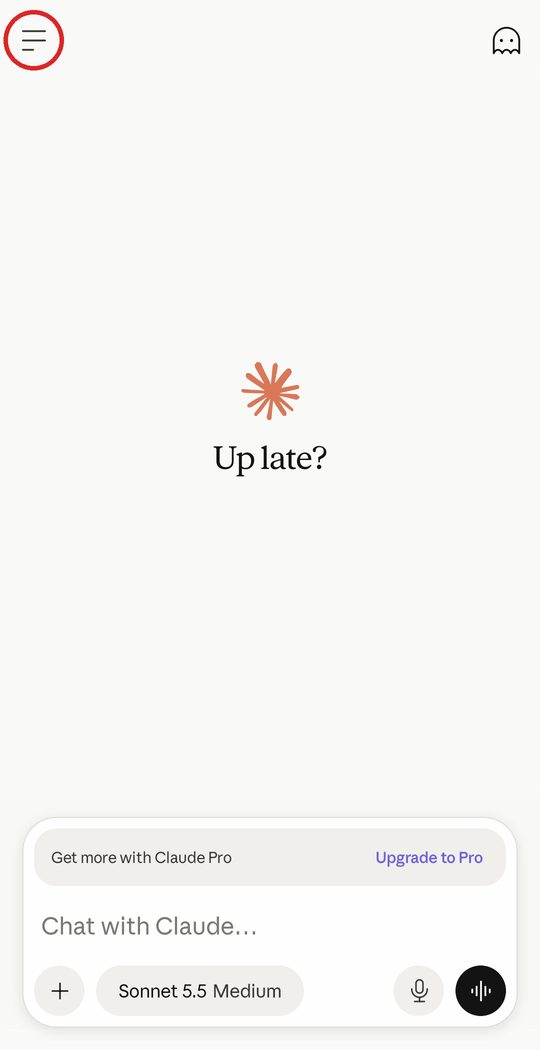
1. Open the side menu
Open the Claude app and tap the menu icon (☰) at the top of the screen.
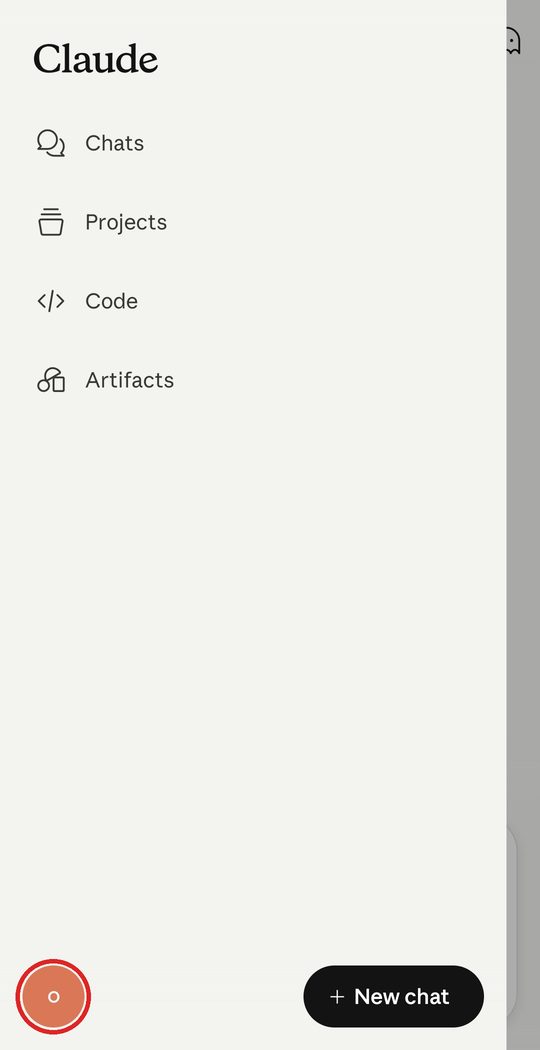
2. Open Settings
Tap your profile icon (the circle) at the bottom of the menu to open Settings.
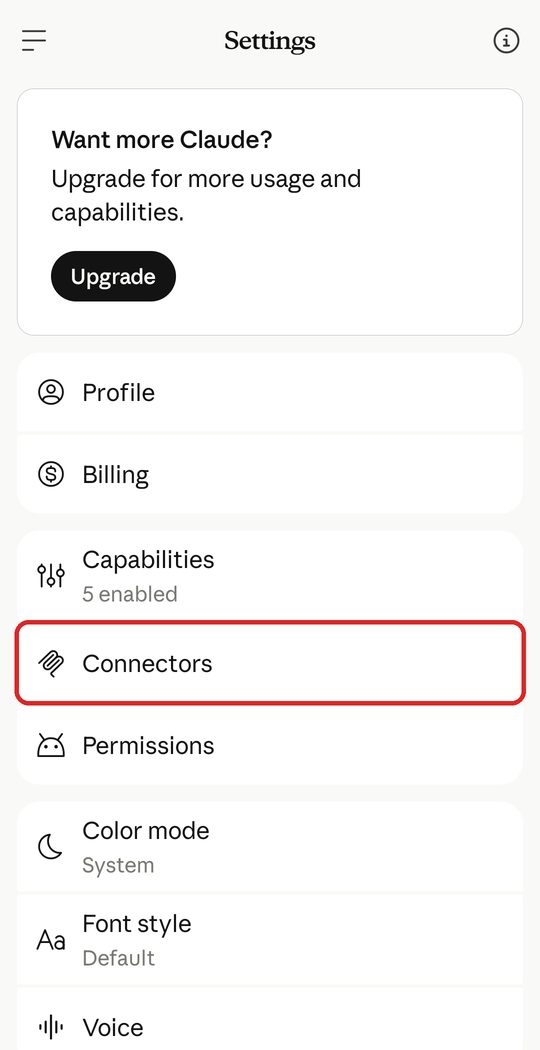
3. Choose "Connectors"
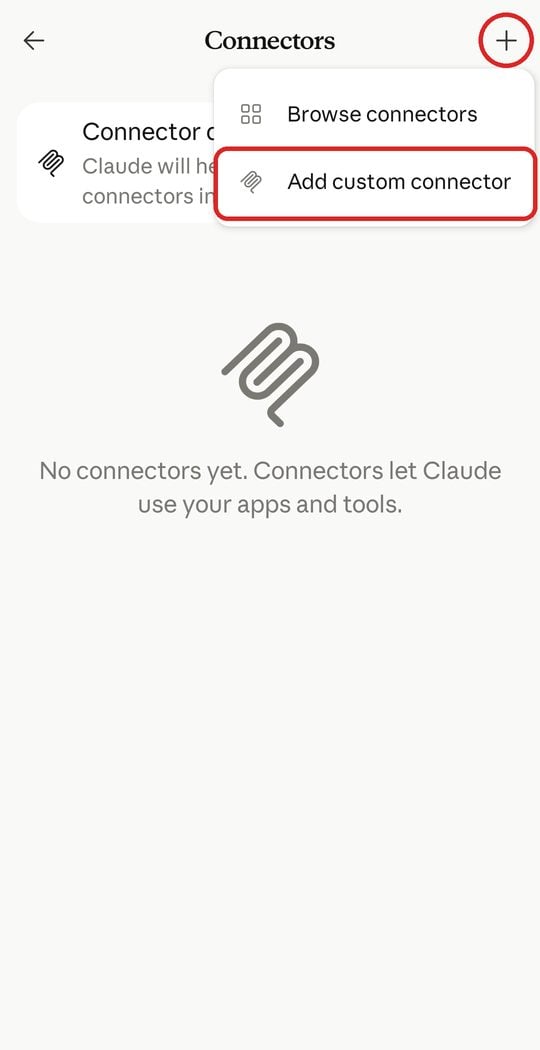
4. Add a custom connector
Tap the (+) at the top of the screen, then choose Add custom connector.
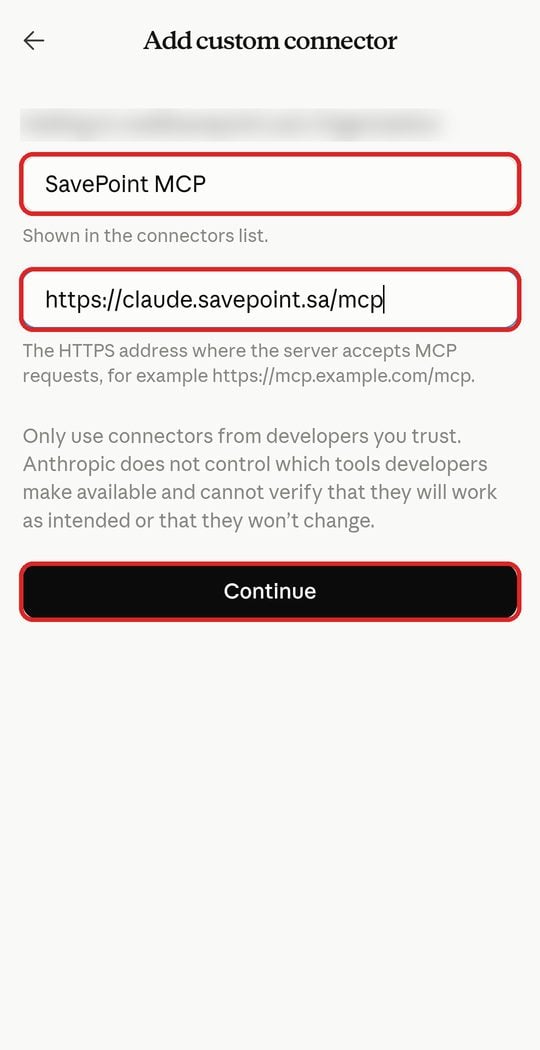
5. Enter the name and URL
Name: SavePoint MCP
URL: https://claude.savepoint.sa/mcp
Then tap Continue.
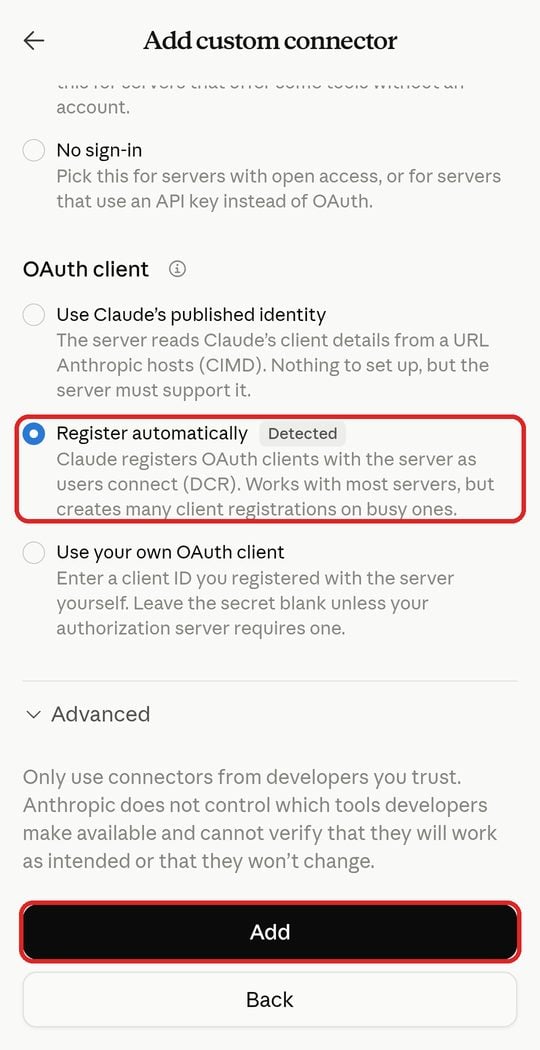
6. Keep the defaults and tap "Add"
Register automatically will already be selected and marked "Detected". Don't change anything — just tap Add.
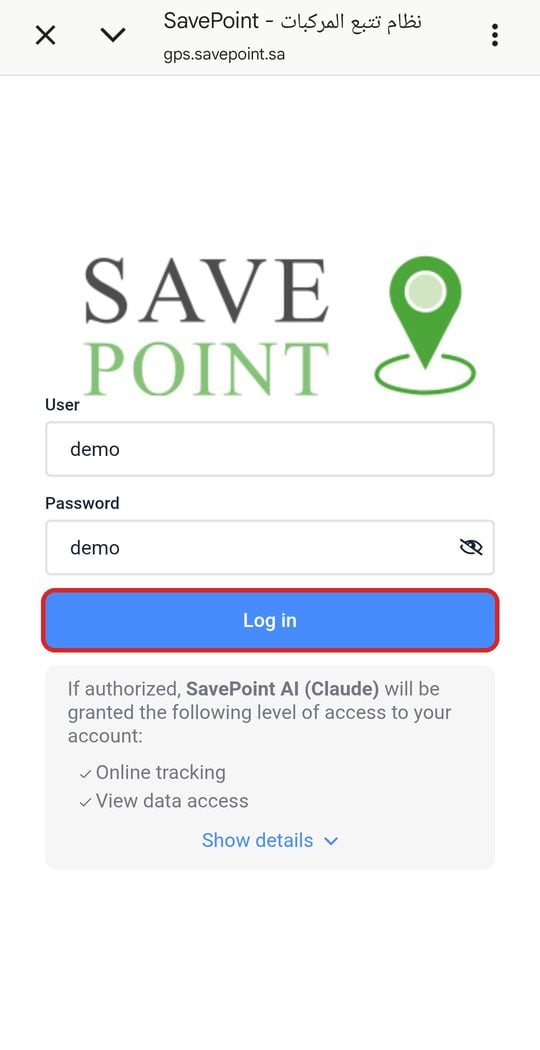
7. Sign in with your SavePoint tracking account
The SavePoint tracking sign-in page (gps.savepoint.sa) opens. Enter your username and password and tap Log in. The page shows exactly what Claude will be allowed to do.
8. Ask Claude about your fleet
That's it! Start a new chat and ask Claude about your fleet directly — from the mobile app, the web, or the desktop app.
Try it risk-free with the demo account to see how it works before connecting your own account:
Username: demo
Password: demo
Why does this matter to a fleet manager?
Faster than any dashboard: one answer instead of ten clicks.
Smarter decisions: ready summaries for speed, maintenance, and costs.
No technical complexity: everything in plain language, no training.
A competitive edge: fleet management at a level no one else offers.
FAQ
Is this feature available elsewhere?
We are among the first to offer it in Saudi Arabia, and it's available exclusively to SavePoint customers.
Do I need technical skills?
No — connecting takes a few simple steps and it's used in plain language.
Does it work on mobile?
Yes. You can add and use the connector from the Claude mobile app, as well as on the web and desktop.
Does it work with all GPS tracking devices?
It works with vehicles registered and active in the SavePoint tracking system.
Is it free?
Available to customers with an active SavePoint subscription.